Introduction
Once in a while you’ll need to decommission an Organization in VMware Cloud Director (VCD), for example when a tenant leaves. Recently while doing this for a tenant, let’s call it CustomerA, the delete of the Org and its Org VDC reported success without any errors. Afterwards though, both the Org and the Org VDC showed up in the “Stranded Items” overview under Infrastructure Resources instead of actually being gone.
If you haven’t come across this screen before: Stranded Items is where VCD parks objects it tried to delete or purge but couldn’t fully finish. This blogpost will discuss how to resolve that specific situation.
Troubleshooting
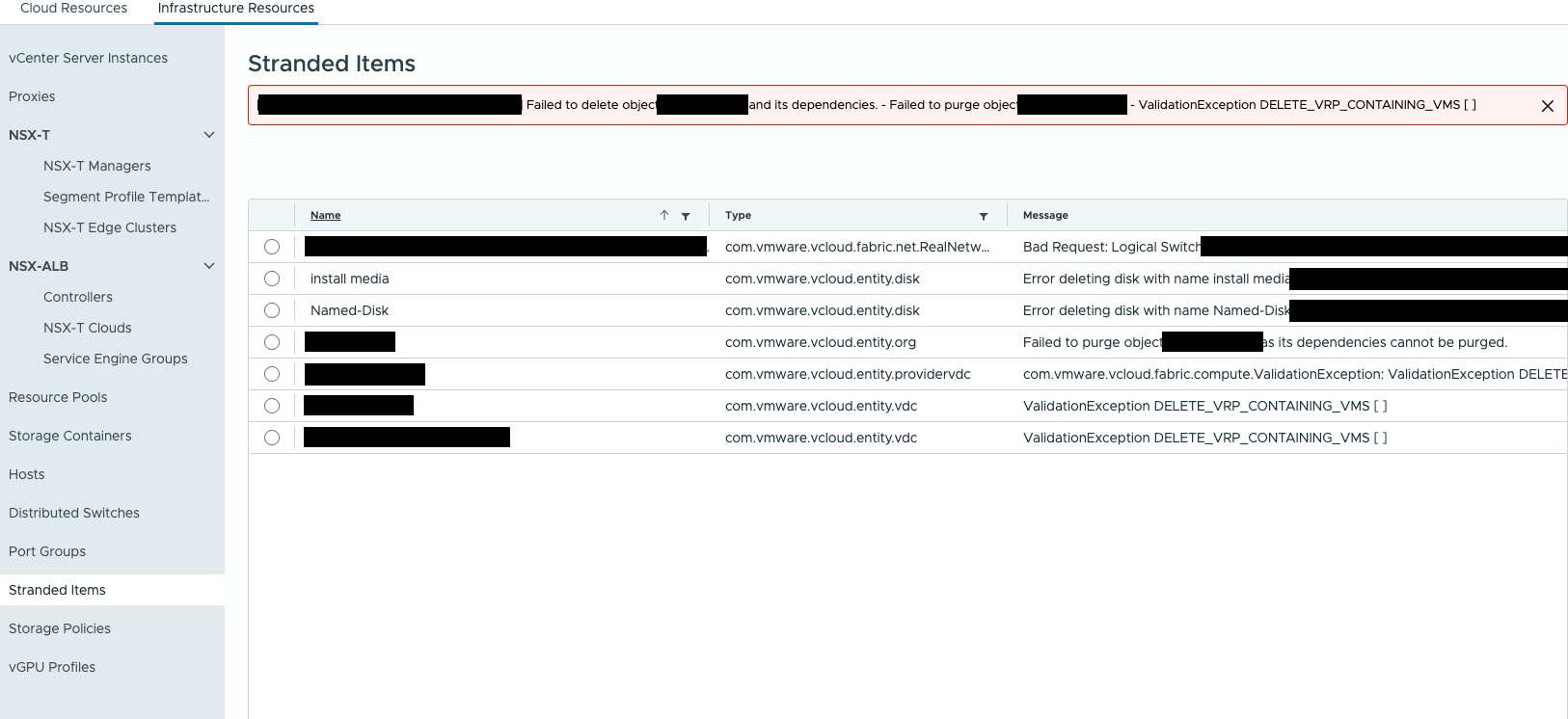
Failed to delete object [org] and its dependencies. - Failed to purge object [org vdc] - ValidationException DELETE_VRP_CONTAINING_VMS [ ]
DELETE_VRP_CONTAINING_VMS is the interesting bit here. VRP is the tenant’s Resource Pool (the OrgVDC’s backing Resource Pool on vCenter Server), and VCD is telling us it still thinks there are VM’s tied to it. Which is odd, because from the Org side everything already looked gone.
First thing I did was check /opt/vmware/vcloud-director/logs/vcloud-container-debug.log on the cell, hoping for some extra detail behind the ValidationException. No luck, same error, nothing new to go on.
At that point the UI and the logs had given me everything they were going to. Since I’ve done my fair share of VCD database edits before, I went straight to the ‘vcloud’ Postgresql database on the cell to see what was actually still linked to that Resource Pool. Usual warning applies here: make sure you’ve got a working backup or snapshot of your VCD cells before poking around in there.
The fix
On the cell there’s a shortcut for this, just type db and you’re dropped straight into the vcloud database:
root@vcd-cell01 [ ~ ]# db
psql.bin (14.11 (VMware Postgres 14.11.0-23473091 release))
Type "help" for help.
vcloud=#
From here we can look up any VM’s still hanging off the VDC’s Resource Pool:
select
     vrp.name AS vrp_name,
     vrp.id AS vrp_id,
     computevm.deployment_status,
     vapp_vm.name AS vapp_name,
     computevm.id AS computevm_id,
     computevm.vmmoref
FROM vrp
INNER JOIN computevm ON vrp.id = computevm.vrp_id
LEFT JOIN vapp_vm ON computevm.id = vapp_vm.cvm_id
WHERE vrp.name like '%VDC-C99999-01%';
In my case, that turned up three of them:
                      vrp_name                       |                vrp_id                | deployment_status | vapp_name |             computevm_id             |  vmmoref
------------------------------------------------------+--------------------------------------+-------------------+-----------+--------------------------------------+-----------
 VDC-C99999-01 (aaaaaaaa-1111-1111-1111-111111111111) | bbbbbbbb-2222-2222-2222-222222222222 | UNDEPLOYED        |           | cccccccc-3333-3333-3333-333333333333 | vm-100001
 VDC-C99999-01 (aaaaaaaa-1111-1111-1111-111111111111) | bbbbbbbb-2222-2222-2222-222222222222 | UNDEPLOYED        |           | dddddddd-4444-4444-4444-444444444444 | vm-100002
 VDC-C99999-01 (aaaaaaaa-1111-1111-1111-111111111111) | bbbbbbbb-2222-2222-2222-222222222222 | UNDEPLOYED        |           | eeeeeeee-5555-5555-5555-555555555555 | vm-100003
(3 rows)
Now, the deployment_status column is the one that matters here, since it tells you which of two situations you’re actually in:
- If it comes back as **
UNDEPLOYED**, like in my case, you’re looking at a leftover database reference and nothing else, no actual VM anywhere. Safe to clean up in the database, which is what I did below.
- If it comes back as **
DEPLOYED**, that’s a different story: there might be a leftover VM still sitting in the Resource Pool on vCenter Server, one that VCD’s UI no longer shows you (though that’s not guaranteed every time). Don’t touch the database in that case, go check vCenter Server first, remove any leftover VM you find there, and only then come back and purge the Org/OrgVDC from Stranded Items.
All three of mine showed deployment_status UNDEPLOYED and no vapp_name, so this was just database leftovers, not actual VM’s. Safe to delete with the following command:
delete from computevm where id = 'cccccccc-3333-3333-3333-333333333333' AND vrp_id = 'bbbbbbbb-2222-2222-2222-222222222222';
delete from computevm where id = 'dddddddd-4444-4444-4444-444444444444' AND vrp_id = 'bbbbbbbb-2222-2222-2222-222222222222';
delete from computevm where id = 'eeeeeeee-5555-5555-5555-555555555555' AND vrp_id = 'bbbbbbbb-2222-2222-2222-222222222222';
Once those three records were gone, the VRP had nothing left tied to it, and the Org VDC and Org purged from Stranded Items without complaint. Do check the deployment_status first though, don’t just run these deletes blind. You might end up removing a working (forgotten) VM from the VCD UI.
Conclusion
So a “successful” delete in VMware Cloud Director isn’t always the end of it. Stranded Items exists for exactly this reason: VCD’s own bookkeeping (a Resource Pool still referencing VM’s in the database) can disagree with what the UI just told you. A quick query against `vrp` and `computevm` was enough to find the leftovers and clear them out.
As always with hands-on database work: take a backup first, and don’t assume your output looks exactly like mine, check your own `deployment_status` before deleting anything. Hope this saves someone a headache!