Introduction
We recently stood up a fresh vSphere 8.0 Update 3 environment. Since it was a clean start, we decided we did not want to drag the old Host Profiles feature along with us anymore, and instead go with the newer vSphere Configuration Profiles (VCP). In vSphere 8 Update 3 VCP works on both image managed clusters and baseline managed clusters, and you can even switch from Host Profiles to VCP, so it felt like the right moment to make the jump.
So we built our JSON configuration, applied it to the cluster, and everything looked fine at first. But after a while we started noticing something odd. Random hosts would randomly disconnect from vCenter Server, and then come back a while later. No pattern that we could see, and the logs did not give us any clues at first. Let’s get into how we chased this one down, because the road to the actual root cause had a couple of detours.
Troubleshooting
The first thing worth saying is that the Configuration Profile itself applied without any errors. The remediation completed and the hosts reported back as succeeded.
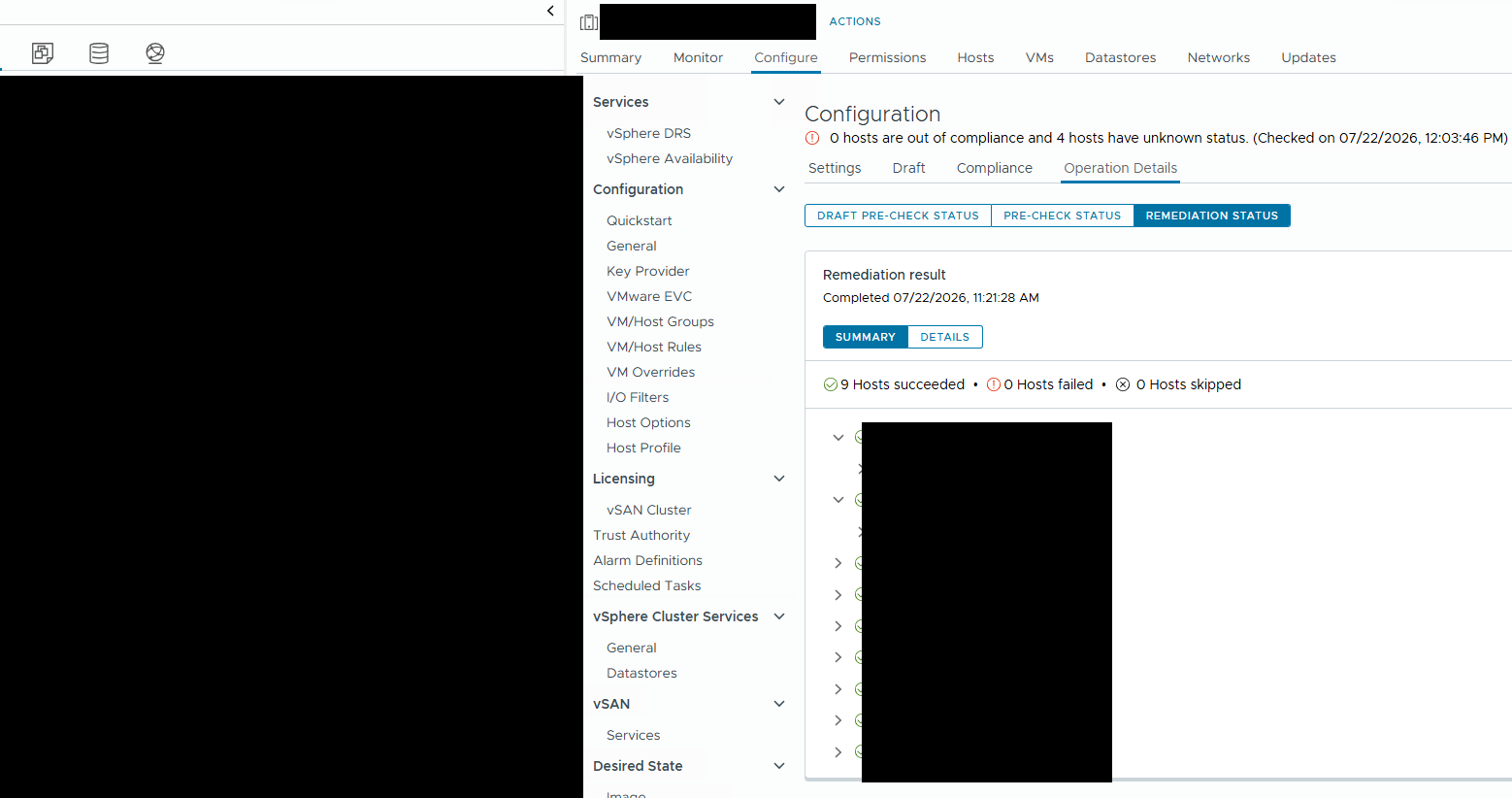
So the profile was not failing to apply. But when we looked at the Desired State Configuration status, it told a different story. It reported that zero hosts were out of compliance, but four hosts had an unknown status. The hosts that we could still reach threw the error “Internal error occurred. Check compliance is skipped”, and the rest were simply disconnected.
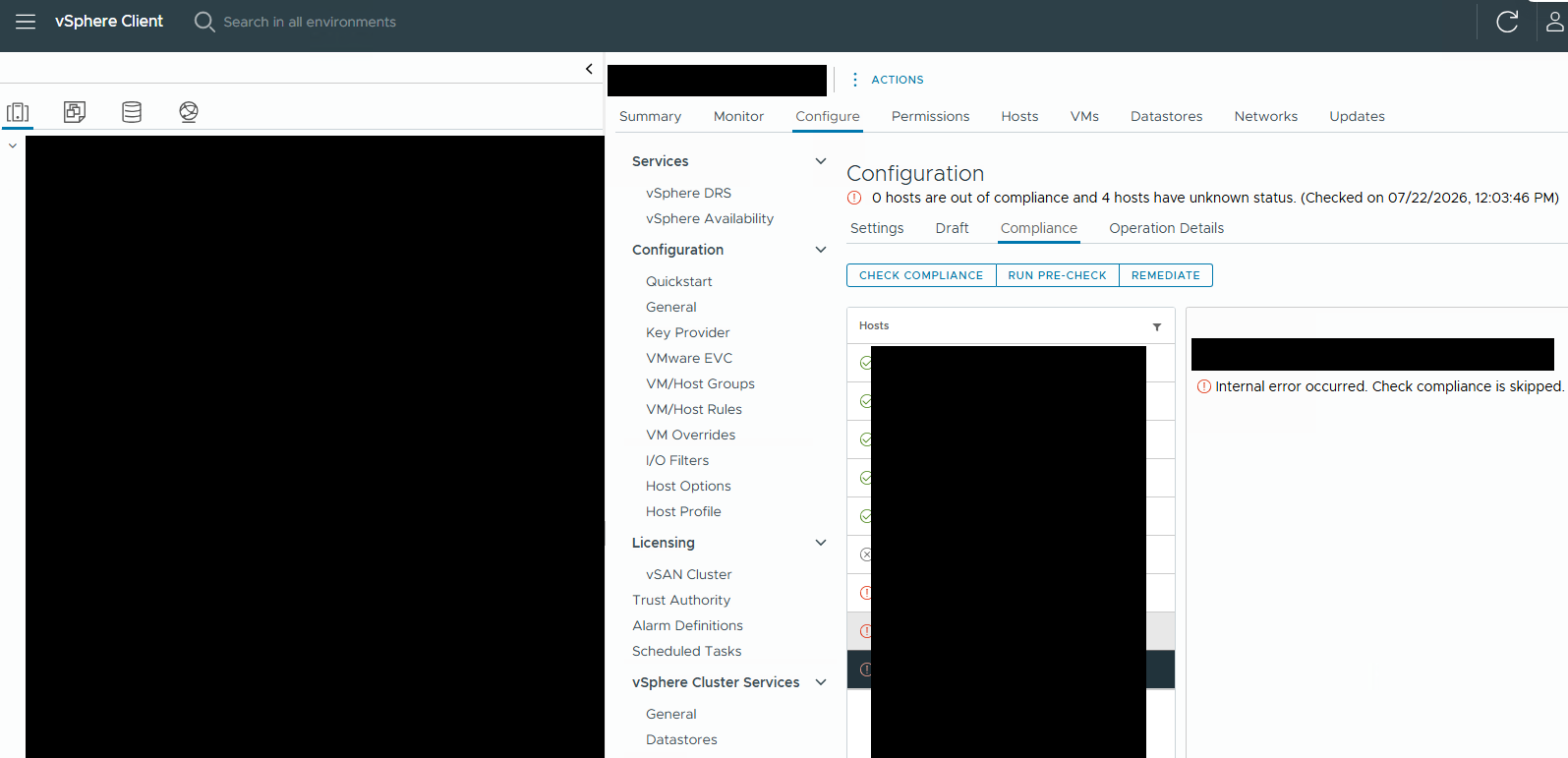
That unknown status makes sense in hindsight. If a host keeps dropping off, the compliance check never gets the chance to finish, so it can neither pass nor fail. At the time though, it just left us staring at a screen that told us nothing was wrong while hosts were clearly misbehaving.
A detour through Desired State Images
While poking around we also tried enabling Desired State Images to see if that gave us any more information. That did not go well either. We got two errors on the following tasks:
Check cluster's eligibility to be managed with a single image
Error: A general system error occurred: Cluster contains payload from unsupported solution(s).

Get Installed Host Images
Error: A general system error occurred: Feature cannot be enabled on this cluster
Searching for that first error led us to Broadcom KB 312995. That KB describes two possible causes for the “unsupported solution(s)” error. The first is that a host has two management networks enabled. The second is that multiple ESXi hosts share the same scratch location, which makes settingsd fall over.
So we checked both. The scratch partitions turned out to be different across the hosts, so that was not it. And when we looked at the VMkernel adapters, only vmk0 was tagged as Management and vmk1 was tagged as vMotion, so there was no double management network either. A bit of a dead end, but at least we ruled those two out.
A red herring on the hardware layer
Around the same time we also noticed a warning on the hardware layer, in the underlying chassis:
There is not enough power available from the power subsystem to meet the current power redundancy mode settings. The enclosure and/or components may lose power if subsequent power failures occur
Worth noting and worth fixing on its own, but as far as we could see it was not related to the disconnects. It didn’t make sense a power throttling issue would cause this.
The first real clue
Things got more interesting when we tried to take a host out of maintenance mode. That failed with the following error:
Cannot complete the configuration of the vSphere HA agent on the host. "Applying HA VIBs on the cluster encountered a failure". Failed installing HA component on the host: host-1119. An error occurred while downloading depot metadata from http://vc02.vcloudvision.lab:9084/vum/repository/hostupdate/__micro-depot__vendor-vmw__vmw-ESXi-8.0.3-metadata__index__.xml.
A failure downloading depot metadata from the vCenter Server. That pointed us at the /var/log/lifecycle.log file on the host, which gave us this:
lifecycle [<PID>] : Downloader: 214 Download failed: <urlopen error [Errno -3] Temporary failure in name resolution>, 5 retry left ...
“Temporary failure in name resolution”. That is a DNS problem. So we did a manual lookup from the ESXi host CLI to confirm:
nslookup esx09.vcloudvision.lab 10.0.0.10
;; communications error to 10.0.0.10#53: timed out
;; communications error to 10.0.0.10#53: timed out
;; communications error to 10.0.0.10#53: timed out
;; no servers could be reached
No servers could be reached. We found our culprit. Or at least, we thought we did.
The fix
Part 1: the DNS problem
It turned out that the firewall rules for DNS services were not correctly configured on the specific network that the ESXi hosts live on. Once we got that sorted and DNS was allowed through the firewall again, the manual lookup worked immediately:
nslookup esx09.vcloudvision.lab 10.0.0.10
Server:         10.0.0.10
Address:        10.0.0.10#53
Name:   esx09.vcloudvision.lab
Address: 10.0.38.9
The whole environment also became a lot more responsive after this, which made sense now that DNS actually worked. So this was a genuine problem that got fixed.
But here is the thing. The spontaneous disconnects did not stop. DNS was broken, we fixed it, and the hosts kept dropping off anyway. So DNS was a real issue, but it unfortunately was not the root cause of the disconnects.
Part 2: the actual root cause
With DNS fixed we went back into the logs, this time the vmkernel.log on one of the affected hosts. There we found this repeating:
2026-07-23T05:17:32.481Z In(182) vmkernel: cpu98:2099488 opID=6e5aaf83)Uplink: 18038: vmnic0: set flags 0x49e0e DEVICE_REENABLING
2026-07-23T05:17:32.481Z In(182) vmkernel: cpu98:2099488 opID=6e5aaf83)Uplink: 18176: vmnic0: clear flags 0x41e0e DEVICE_REENABLING
2026-07-23T05:17:32.483Z In(182) vmkernel: cpu98:2099488 opID=6e5aaf83)NetDVS: 10369: Failed to clear host property com.vmware.common.host.dpu.vmnic.mapping on DVS <DVS-UUID> as it is not set yet.
Those DEVICE_REENABLING flags mean the NIC driver is actively resetting the physical adapters, because it thinks there is a hardware or transmission hang. Our hosts use the HPE Broadcom BCM57504 NetXtreme-E RDMA Partition adapters, and our driver and firmware combination was not a listed combination on the Broadcom Hardware Compatibility List. So we updated the driver from 226.0.21.0-31vmw to 236.1.128.0-1OEM.800.1.0.20613240 to get onto a supported combination and kept an eye on stability.
This unfortunately also didn’t fix the stability for the hosts. We continued searching for the root cause and found duplicate MAC addresses on the network. That was strange, because our own vobd.log did not show anything about duplicates, and neither did the vmkernel.log. They both didn’t have any useful entries.
Searching around brought us to two Broadcom KBs, KB 318928 and KB 433796. The second one described our situation almost perfectly. Its symptoms are hosts that frequently disconnect and reconnect in vCenter Server, high packet loss when pinging the host management IPs from the same subnet, and crucially, “No specific warnings regarding duplicate IPs are present in the vobd logs”. That last line is why our logs looked clean. We had been looking for a duplicate warning that was never going to be logged…
So why did we have a duplicate MAC in the first place? We inadvertently had configured a USER_DEFINED mac_mode in our General Section in the Configuration Profile with the MAC addresses filled in. What we believe happened is that somewhere in the initial profile configuration and editing, the same MAC address ended up being written to more than one host. You can actually see it in the VCP UI, under Configure, Configuration, Settings, network, vmk1. Both hosts carry the exact same mac_from_user value.
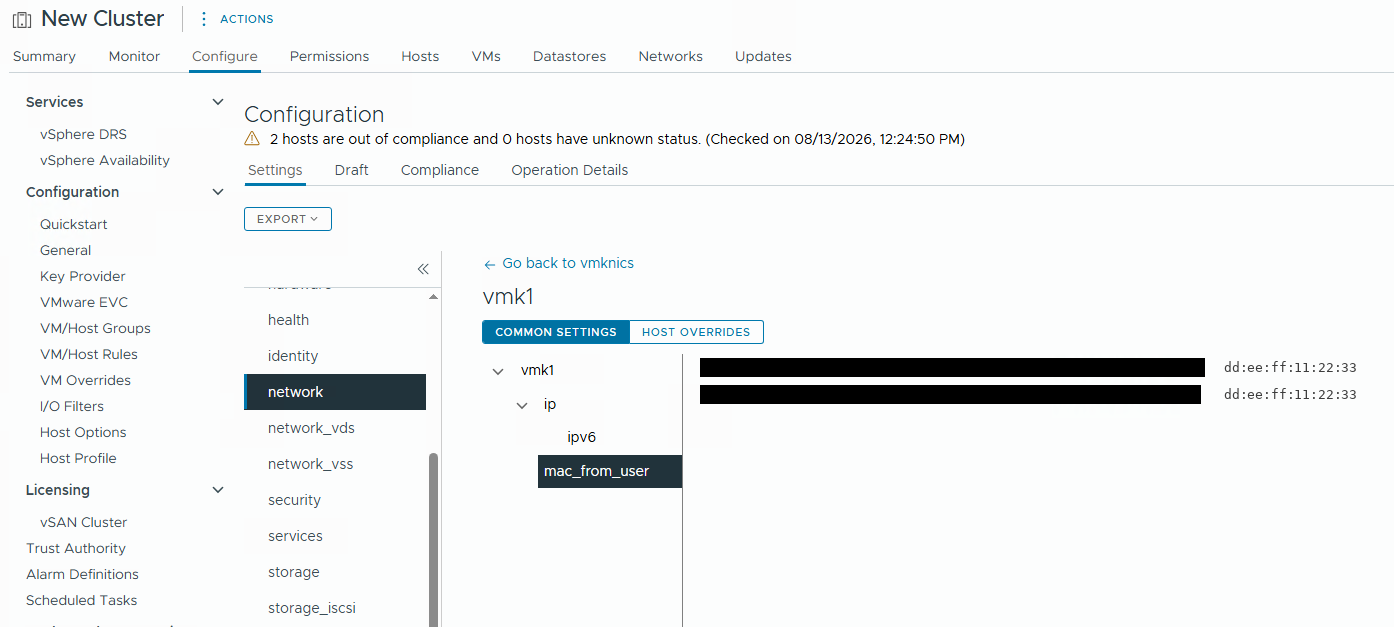
And you can see the same thing directly in the Configuration Profile JSON. Notice that vmk0 has a distinct mac_from_user per host, but vmk1 has the identical value on both:
"host-specific": {
    "<host-A-uuid>": {
        "esx": {
            "network": {
                "vmknics": [
                    {
                        "ip": {
                            "ipv4_address": "10.0.40.18",
                            "ipv4_subnet_mask": "255.255.255.0"
                        },
                        "device": "vmk0",
                        "mac_from_user": "aa:bb:cc:00:00:22"
                    },
                    {
                        "device": "vmk1",
                        "mac_from_user": "dd:ee:ff:11:22:33"
                    }
                ],
                "net_stacks": [
                    {
                        "key": "defaultTcpipStack",
                        "host_name": "esx18.vcloudvision.lab"
                    }
                ]
            }
        }
    },
    "<host-B-uuid>": {
        "esx": {
            "network": {
                "vmknics": [
                    {
                        "ip": {
                            "ipv4_address": "10.0.40.17",
                            "ipv4_subnet_mask": "255.255.255.0"
                        },
                        "device": "vmk0",
                        "mac_from_user": "aa:bb:cc:00:00:20"
                    },
                    {
                        "device": "vmk1",
                        "mac_from_user": "dd:ee:ff:11:22:33"
                    }
                ],
                "net_stacks": [
                    {
                        "key": "defaultTcpipStack",
                        "host_name": "esx17.vcloudvision.lab"
                    }
                ]
            }
        }
    }
}
Two different hosts, one MAC address on vmk1. Now it makes sense.
Resolving the duplicate MAC
For the hosts that had picked up the duplicate MAC, we followed the approach from KB 433796 and reinstalled them. A fresh ESXi install recreates the networking stack from scratch and clears out the conflicting MAC information. After the reinstall the environment has been stable again.
If a full reinstall is not feasible in your environment, there are a couple of alternatives depending on how the MAC is assigned.
If your vmkernel interface uses a VMware OUI derived MAC address (the 00:50:56:xx:xx:xx range, see the VMware OUI allocation docs). Good to know, this also works for VMkernel adapters, not only for VM adapters. With the following commands you can recreate vmk0 so the host generates a new, unique MAC address:
# 1. Confirm the current MAC assigned to vmk0
esxcfg-vmknic -l

# 2. Remove the conflicting interface (make sure you have DCUI or other access first)
esxcli network ip interface remove --interface-name=vmk0

# 3. Recreate the interface, which forces a new unique MAC
esxcli network ip interface add --interface-name=vmk0 --portgroup-name="Management Network"

# 4. Reassign the IP settings
esxcli network ip interface ipv4 set --interface-name=vmk0 --ipv4=[IP_ADDRESS] --netmask=[NETMASK] --type=static
If instead you are using a PNIC_BASED mac_mode, the vmkernel interface takes the burned in physical NIC adapter MAC address rather than a VMware OUI one. You can change that in the configstore, and KB 318928 walks through exporting the vmknic settings, setting mac_mode to PNIC_BASED, and importing them back in.
Conclusion
So to wrap this one up. We moved a fresh environment onto vSphere Configuration Profiles instead of Host Profiles, and shortly after we started seeing random hosts disconnect and reconnect. The trail took us through a Desired State Images error that turned out to be a dead end, a chassis power warning that was unrelated, and a DNS and firewall problem that needed fixing but was not the actual cause. The real root cause was a duplicate MAC address on the vmkernel interface, which we had unknowingly baked into our Configuration Profile by using a USER_DEFINED mac_mode with the same MAC on more than one host. The clean vobd.log kept us looking in the wrong place, which took its time.
It’s good to be very careful with user defined MAC addresses in a Configuration Profile, and to double check that every host really does get a unique value before you apply it. And when hosts disconnect for no obvious reason, do not fully trust a clean vobd.log, a duplicate MAC can hide there without a warning. Also good to know is that we did not manually put in the MAC addresses in the configuration profile. So probably something went wrong during the initial setup/export for the configuration profile from the cluster.
Thanks for reading, and until the next blogpost!



0 Comments